Touch typing for kids
Touch typing can save children time when they complete school assignments on a computer or type everyday messages. The earlier a child learns to touch type, the more years they can benefit from the ability to type quickly and accurately. Fast typing may also be useful in the child's future work at a computer, especially when touchscreens or dictation are not practical ways to enter text.
Key takeaways
- Faster, accurate typing can save children time now and throughout their later use of computers.
- Teachers and parents should begin with easy exercises and correct finger movements before expecting more speed.
- Games and symbolic speed levels can help children notice progress without turning every lesson into a race.
- AgileFingers supports both guest practice and teacher-managed classes with saved student results.
Why touch typing matters
When a child knows where the keys are and can use the correct fingers without looking down, typing can take less time. A sentence, a search query, or a short answer may be quicker to enter, and those small savings can add up over years of keyboard use. How much time is saved depends on the child's typing speed, accuracy, and the tasks they do.
For a teacher or parent, this is a reason to teach correct finger placement before encouraging speed. A child who types quickly but makes frequent mistakes still has corrections to do. The useful skill is accurate touch typing that the child can put to use in school and later computer work. A child can type slower at first, but this child has a long life ahead. It is more important to gain speed later than to have quick results and struggle with typing ergonomics for the rest of one's life.
What the research shows
A Dutch study published online in 2018 in the Journal of Computer Assisted Learning analyzed 207 pupils in grades 4-6, aged 10-12. Researchers from Radboud University and Tesselhof Education compared 154 course participants with 53 classmates who did not take the course.
The course group's average typing speed more than tripled, from 52.85 to 168.34 keystrokes per minute; the comparison group improved from 62.19 to 75.55. Typing errors fell from 3.27% to 0.72% in the course group, compared with 3.45% to 2.75% among classmates. On average, the trained children gained speed while making fewer errors.
The researchers also reported benefits for spelling and the quality of typed narratives. Training lasted seven months, with fifteen 90-minute supervised sessions and daily home practice. The groups were not randomly assigned, and extra language practice may have contributed to the spelling and composition gains.
Ergonomics and sitting posture
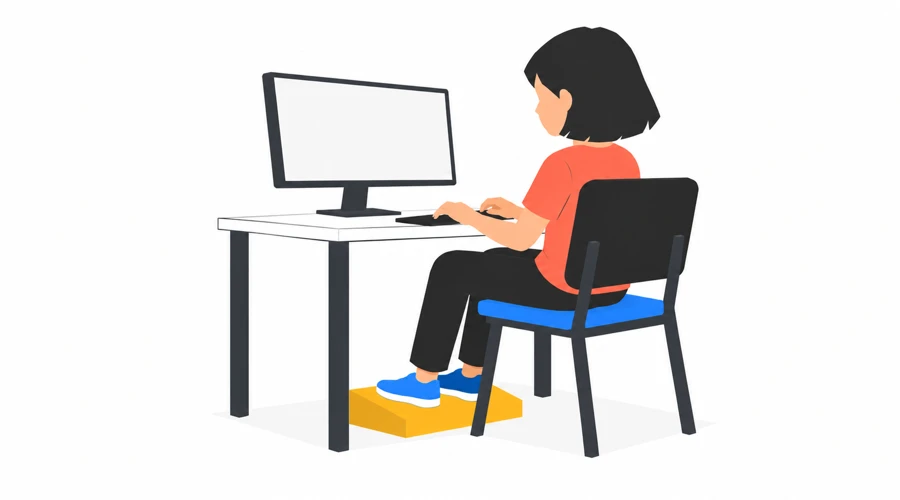
An ergonomic workstation matters when children practice touch typing. Cornell University's guidance for children's computer use recommends a supported back and feet, relaxed arms, wrists in line with the forearms, and a screen the child can view without bending the neck far forward or backward.
Check how the child is sitting during practice, even if suitable furniture is not available. Look for back support, feet on the floor or a stable footrest, relaxed shoulders, and a keyboard within easy reach. Adjust the chair height or keyboard position where possible. If the child has to stretch or twist to reach the keys, change the setup before continuing.
Parents and teachers should also allow breaks and changes of position. Asking a child to sit upright cannot make up for a keyboard that is too far away or a chair that leaves their feet unsupported.
When to start
As a teacher or parent, look at what the child can do with the keyboard in front of them. Can they recognize the letters in an exercise, follow a short instruction, and reach the keys without twisting their hands? Work through a simple lesson together and observe whether the child is using the correct keys. The child must press the keys with the specific fingers indicated by the virtual hands - otherwise, the exercise loses its purpose. If the child is willing to follow the instructions and can manage using a few keys, they may be ready for a short practice session, even if typing full sentences is still too difficult for them.
Avoid treating the starting age as a deadline. If the activity is frustrating, a supervising adult can shorten the exercise, help with finger placement, or return to it later. Children who need a different input method or adapted equipment should have a practice plan that fits their needs.
Simple typing lessons
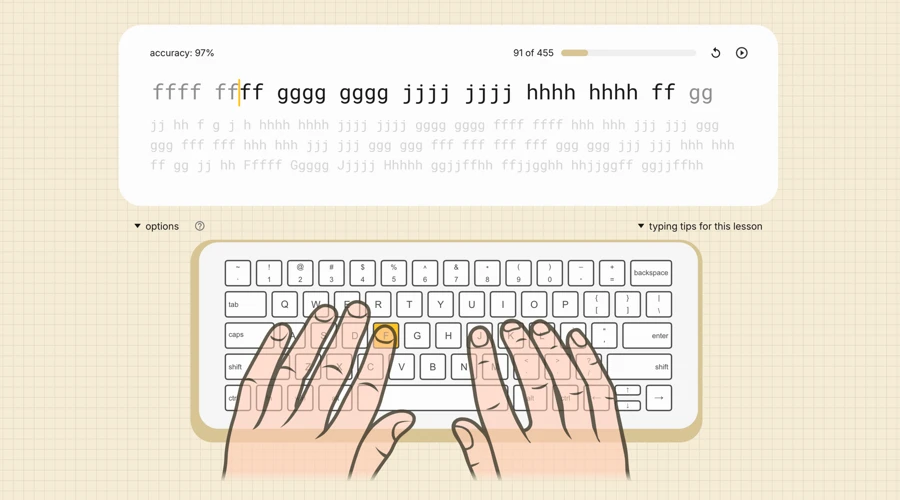
A teacher or parent can introduce the AgileFingers typing course with Lesson 1. The early lessons use small groups of keys, so the child can learn a few finger movements at a time. On a standard QWERTY keyboard, the raised marks on "F" and "J" help the child's index fingers find their starting positions by touch. The keyboard layout selected in AgileFingers should match the child's physical keyboard.
Children need repeated practice with simple letter patterns such as ffff ffff hhhh hhhh to learn where to move their fingers. The exercises should be easy enough that they do not spend most of the session searching for keys. AgileFingers' virtual hands show which fingers to use; the child should follow that guidance while an adult checks their hand position.
If a child keeps missing the same key, a teacher or parent can show that movement again and give them time to repeat it slowly. An occasional glance down is a cue to help the child find their position. Words and short sentences can follow as the child becomes more familiar with the keys.
Gamification of typing practice
AgileFingers represents typing speed ranges with symbols such as a hedgehog, squirrel, cat, or rabbit. A speed symbol appears alongside the latest speed and accuracy results. These recognizable characters and colors give younger learners a friendly way to follow their results.
This is an example of gamification: adding game elements, such as levels and progress markers, to an activity that is not itself a game. A change from a hedgehog symbol to a squirrel, for example, gives a child a visible sign that their typing speed has changed.
An open-access meta-analysis by Michael Sailer and Lisa Homner compared gamified learning activities with activities without game elements. Across 19 studies involving 1,686 learners, gamification improved learning results on average. The assessments covered knowledge of facts and concepts as well as applying knowledge to tasks. The benefit remained in the subset of studies with stronger designs. Studies in schools also showed larger learning gains than those in higher education or informal training.
In practice, compare the child's results on similar exercises and look at accuracy before encouraging more speed. A lower speed level on a lesson with unfamiliar keys is a reason to work on those movements slowly. Returning to a familiar lesson can help you see how the child's control of those keys has changed.
Point out something specific: "You found J without looking down that time," or "You made fewer mistakes on this lesson." A child can recognize that progress even before the speed figure rises.
Typing games for kids
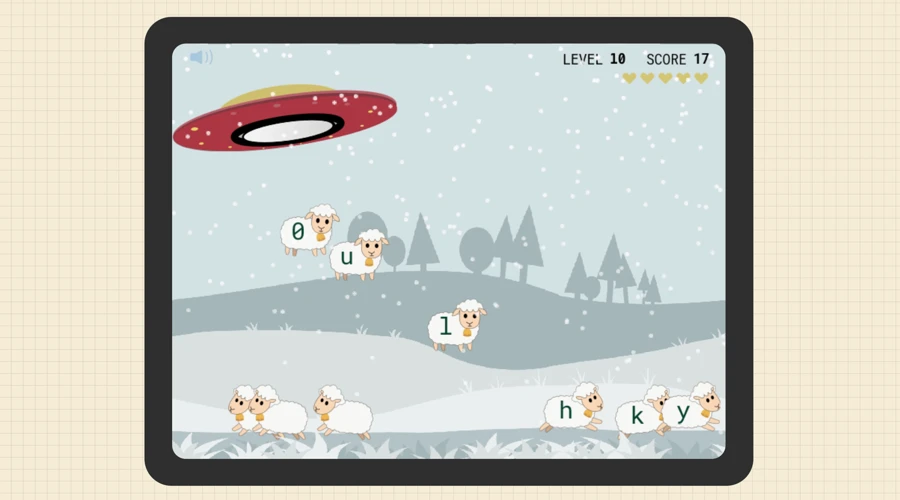
Games give children something to do with the keys they have learned. In Sheep Rescue, players type individual letters and numbers shown on sheep. Word-jumper and Rebellious Robot have similar platform gameplay: children type whole words to help a character get past obstacles. In Rebellious Robot, typed words trigger actions such as jumping and attacking enemy robots. Star Words involves typing words before timers run out.
Teachers and parents can choose a game and difficulty that fit the child's current keyboard skills. If the child starts pressing random keys or looking down at the keyboard too much, an easier activity may be more useful. A game after a short lesson can also show which letters still need practice.
During a game, an adult can watch whether the child is using the recommended fingers and looking mainly at the screen. More points or completed levels are encouraging, but they should be considered alongside how the child is actually typing.
A short practice routine
For teachers or parents planning typing practice for children, five to ten minutes can be a useful starting point. Adjust the session to how long the child can stay focused, and stop earlier if they become tired or start making more mistakes. An adult can first observe the child during practice to make sure they are using the correct hand position, then let the child complete an easy lesson and finish with a manageable game or a review of their results.
A teacher might use this routine at the start of a computer lesson or after children finish their main task. A parent can agree on a stopping time before practice begins, especially when a game could continue for many levels. Short sessions give both adult and child a clear point at which to stop and review progress. In AgileFingers, a game can be continued later as its progress is saved in the browser's session.
Typing in school
A child may understand a question yet find it slow to enter an answer on a computer. Giving keyboard skills a place in lessons lets the class work on that difficulty before typing becomes part of a larger assignment. It also gives the teacher a chance to notice who needs help reaching particular keys or personal teacher guidance.
Keep typing practice alongside reading, handwriting, and discussion. Knowing where the keys are is useful, but children also need to learn how to plan a story, explain an idea, and check whether a sentence says what they mean. A well-rounded education helps children develop these skills together, rather than treating them as separate abilities.
AgileFingers for schools
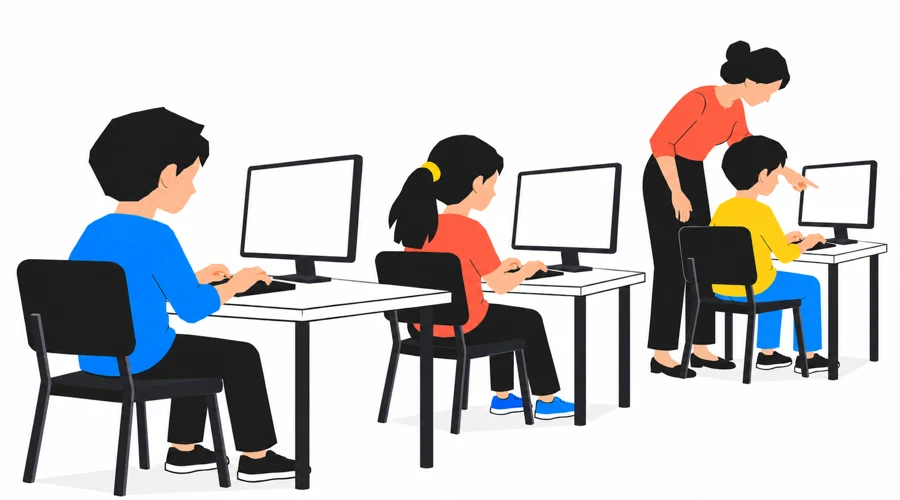
Children can use the AgileFingers typing course, texts, games, and typing test without signing in. A teacher can introduce these activities to a class without creating student accounts. The school module adds class management, assigned tasks, and results saved in each student's account.
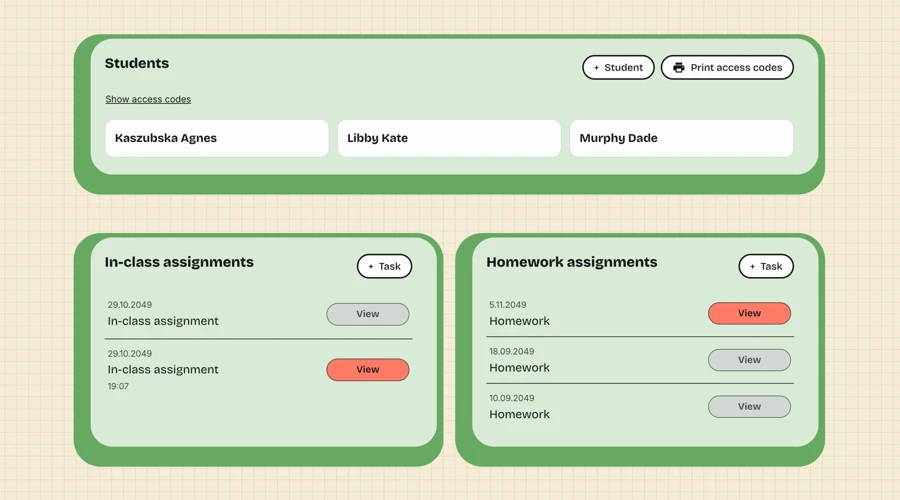
As a teacher, you can use your own AgileFingers account to create a class in the teacher area and add students. Each child receives an individual access code. Children do not supply an email address to use these student accounts. This approach helps protect children's privacy by minimizing the personal information required to access AgileFingers.
Children sign in as students with their codes, then open the student area to find their class work. If you enable it, they can also sign in with a class code and their name as saved in the class. A class code alone does not create an account or sign a child in. Individual codes should be treated as private login details, especially on shared school computers.
Students can also use the course, texts, games, and tests for independent practice after signing in. Their progress is saved in their student account, so they can continue after a classroom session.
Assignments and results
Teachers can combine lessons, standard texts, and their own texts in homework or in-class assignments. Homework has a deadline; an in-class assignment has a shorter time limit. Tasks apply to the whole class. One or two beginner lessons give the group a focused starting point. Children should sign in to their school accounts before doing assigned work so their results are saved. Afterward, the teacher can review completion, speed, accuracy, and passing results.
People also ask
How should children start learning touch typing?
Teachers and parents can begin with easy lessons that repeat a few letters. They should show the child how to place their hands and follow the virtual hand guidance. Exercises should stay simple enough for the child to practice correct finger movements without constantly searching for keys.
What shows progress in touch typing?
Typing progress is connected with fewer mistakes, less need to check the keyboard, and more confident use of the correct fingers. Teachers and parents can compare results from similar lessons over time. A child may type more slowly when new keys are introduced, so one speed result does not tell the whole story.
Can children practice without signing in to AgileFingers?
Children can practice as guests using the typing course, texts, games, and typing tests. Student accounts are useful when teachers want to assign exercises and track each child's results. Signing in also allows children to save their progress from independent practice. Students do not need to provide an email address to use their accounts.
Getting started
As a teacher, start with an easy typing lesson and show students how the virtual hands guide them to use the correct fingers. If you want to assign tasks and track individual results, log in as a teacher and create student accounts in the teacher area. Otherwise, children can practice as guests.
As a parent, watch how your child practices typing. Let them begin with the basic keys and learn to use the correct fingers. Make sure they sit comfortably, with their back and feet supported and the keyboard within easy reach. Point out improvements in accuracy and finger control. Learning touch typing at an early age gives children more opportunities to use this skill throughout their education and later life. Helping your child learn touch typing costs nothing, and the time you invest can benefit them for years to come.