How to type faster
Imagine you are typing a reply to an email. A few letters in, you look down to find a key, then back at the screen to fix a mistake. You reread the sentence to pick up where you left off. A simple reply has become a series of interruptions. Touch typing could make that easier. Learning how to type faster can make writing feel smoother and leave you more attention for what you want to convey.
Key Takeaways
- Type more accurately: Reduce repeated corrections before raising your pace.
- Learn touch typing with consistent finger placement: Find keys without watching your hands.
- Reduce unnecessary hand movements: Use relaxed reaches that keep you oriented.
- Get used to your keyboard: Learn its layout and unfamiliar key positions.
- Take care of your posture: Adjust your workstation to fit your body.
- Take regular breaks: Change position and give your hands a rest.
- Keep a steady typing rhythm: Aim for an even pace from one keystroke to the next.
- Make time for focused practice: Give each typing exercise a clear purpose.
- Put the technique into practice with AgileFingers: Use lessons, full texts, and progress checks.
Type more accurately
A common mistake when learning to type faster is focusing only on speed. Each typo may mean stopping, pressing Backspace, entering the correction, and finding your place again. If this happens throughout an exercise, much of your effort goes into repairing text. Slow down enough to press the intended keys reliably, then try typing at a slightly faster pace.
You do not need a perfect run before trying to improve your speed. Look for mistakes that recur, such as confusing two neighboring keys or missing capital letters. Those give you something specific to practice. Accurate keystrokes also do not remove the need to proofread: a correctly typed word can still be the wrong word for the sentence.
Learn touch typing with consistent finger placement
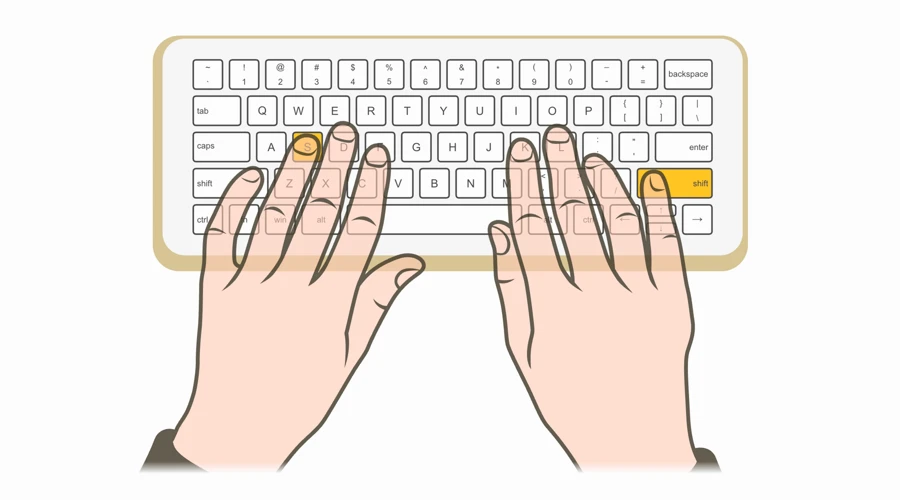
Touch typing means typing without looking at the keyboard. A standard touch typing method gives each finger a set of keys, so you can practice a consistent movement instead of searching for a key each time. On a QWERTY keyboard, the home row is the starting position: place your left fingers on A, S, D, F, and your right fingers on J, K, L, and the semicolon key. Use a thumb for the spacebar.
Your index fingers start on F and J. These keys usually have small bumps that let you find them by touch. Use them to recover your position when your hands drift. The finger placement guide explains which fingers reach the other keys. The home row is a reference point, not a reason to hold your hands rigidly in place.
If you currently type fast with two fingers, a new method may feel slow and awkward. Give it dedicated practice time. When you cannot find a key, check the on-screen guide or briefly look down, then return your eyes to the screen and repeat the movement. The aim is to need that check less often, rather than guess repeatedly to avoid looking.
The researchers behind How We Type: Movement Strategies and Performance in Everyday Typing (2016) found a useful benefit of touch typing: less dependence on watching the keyboard. In their observational study of 30 people copying text, touch typists spent about 20% of the task time looking at the keyboard, compared with 41% for the self-taught group, despite similar average typing speeds. That is useful when copying text from a screen: you can follow the original instead of repeatedly looking away to check your fingers.
Reduce unnecessary hand movements
The study How We Type (2016) linked faster typing to consistent finger choices and less movement of the whole hand. Preparing a finger for the next keystroke was another predictor. Touch typing gives you a clear pattern to practice: each finger has assigned keys, and the home row provides a reference for reaching them. Before you focus on increasing your typing speed, ensure that the correct hand movements become a habit for you.
For your own practice, watch for large movements that make you lose your position. If reaching for a number pulls both hands away from the letters, practice the number and the following letter together. Keep your fingers near the keys and use relaxed reaches. Do not try to eliminate movement by stiffening your hands or wrists.
Get used to your keyboard
Not every keyboard is the same, even when it is used for the same language. Laptop and desktop keyboards can differ in the size and position of Enter, Shift, and other keys. Language layouts also put some characters in different places. Check that your operating system's input layout and your typing course's selected layout match the keyboard you intend to use.
Practice on your usual keyboard when possible. When switching to another one, take a moment to find the home keys and any unfamiliar punctuation. Learn the positions that cause trouble before trying to match your best speed on a familiar keyboard.
Take care of your posture
Set up your workstation so you can reach the keyboard without raising your shoulders or bending your wrists sharply. The Occupational Safety and Health Administration (OSHA) recommends relaxed shoulders, elbows close to the body and bent between 90 and 120 degrees, and hands and wrists in line with the forearms. Support your back and keep your feet on the floor or a footrest.
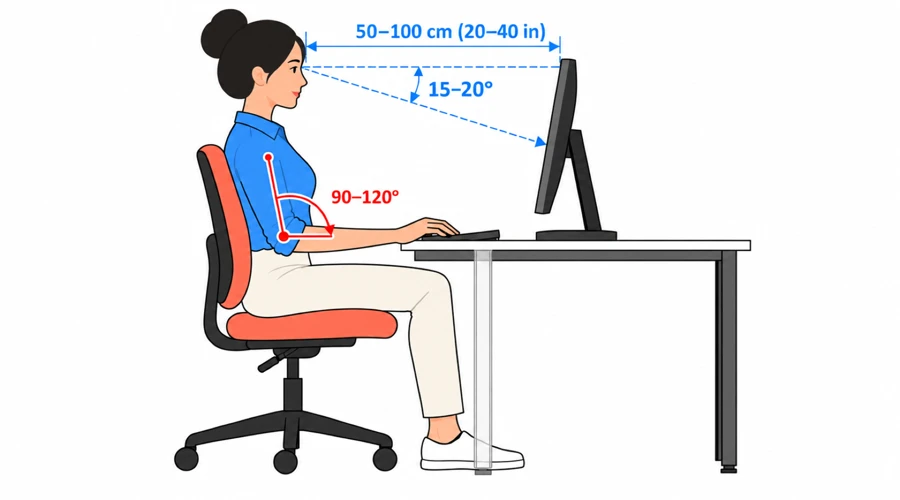
For the screen, OSHA's monitor guidance suggests a viewing distance of about 50-100 cm (20-40 inches), with the top of the screen at or slightly below eye level and its center roughly 15-20 degrees below your horizontal line of sight. Adjust the setup to your body and eyesight; enlarge the text if you find yourself leaning forward to read.
The aim is a comfortable reach and a clear view of the screen. If a child is learning, an adult should check that the chair, desk, and foot support fit the child rather than expecting them to reach an adult's workstation.
Take regular breaks
Even a comfortable position needs a change. The Occupational Safety and Health Administration recommends changing position frequently and standing up or walking around periodically. Between exercises, take your hands off the keyboard, relax your shoulders, and step away from the desk.
Pause if your hands feel tired or uncomfortable, or if you tense your hands and shoulders to keep up. Resume at a comfortable pace, and leave room for these pauses in your practice schedule.
Develop a steady rhythm
Aim to move smoothly through a sentence instead of rushing familiar words and stopping at every difficult one. You do not need to give each keystroke the same amount of time. Notice the movements that interrupt your pace, such as reaching for a number.
Practice the difficult part of an exercise slowly, including the keys before and after it. For example, if capitals break your rhythm, practice using Shift with the opposite hand to the letter, then type a sentence with several capitals. Raise your pace a little once that movement feels reliable. If corrections multiply or you tense up, ease back.
Make time for focused practice
Typing daily can improve your skill, but it leaves little room to examine technique when you are trying to finish work or compose an essay. Set aside time when you can concentrate on how you type. Start with short, regular typing exercises; there is no single daily duration that suits everyone.
Give each typing exercise a clear purpose. If the same key keeps giving you trouble, practice pressing it with the correct finger. If individual keys feel easy but sentences do not, spend more time on the full text. Finish with a different passage to check whether the movement still works when you are not repeating the same exercise. Avoid restarting every time you make one mistake; you also need practice continuing through a whole passage.
Put the technique into practice with AgileFingers
AgileFingers puts accuracy and consistent finger placement at the center of learning to type faster.
Learn touch typing with AgileFingers
AgileFingers puts accuracy and consistent finger placement at the center of learning to type faster.
Learn with the virtual hands
In AgileFingers' desktop practice view, the virtual keyboard and hands show which key and finger to use next. This lets you check an unfamiliar movement while keeping your eyes on the screen. Start with the touch typing course and work on keys you still need help finding.
Practice with full texts
Move to full-text typing practice to use those movements with normal words, capitals, and punctuation. This is where you check whether a key that felt easy in a lesson still causes a pause in a sentence. Choose passages you can complete without rushing, and keep working on the recurring difficulties.
Track your progress
AgileFingers shows your speed and accuracy after each typing exercise. Recent results appear beside lessons and texts, and progress charts let you look back at earlier attempts. You can return to an exercise and see how your results change with practice. An occasional typing test also helps you check your level without the virtual keyboard to guide you.
Your typing level is represented by an illustrated animal character, with levels ranging from a hedgehog to a dragon. These characters give practice a game element and a visible next goal. Reaching a new level can make repeated exercises more rewarding, while the accuracy results help you check that extra speed has not come at the cost of more mistakes.
Conclusion
To type faster, make accurate finger movements a habit through regular touch typing practice. Increase your pace as the movements become familiar, while keeping your hands relaxed and taking breaks when you need them. You can practice the technique in AgileFingers lessons, then use it in full texts. This can make everyday typing smoother, with fewer stops to find keys or correct mistakes.