What is touch typing?
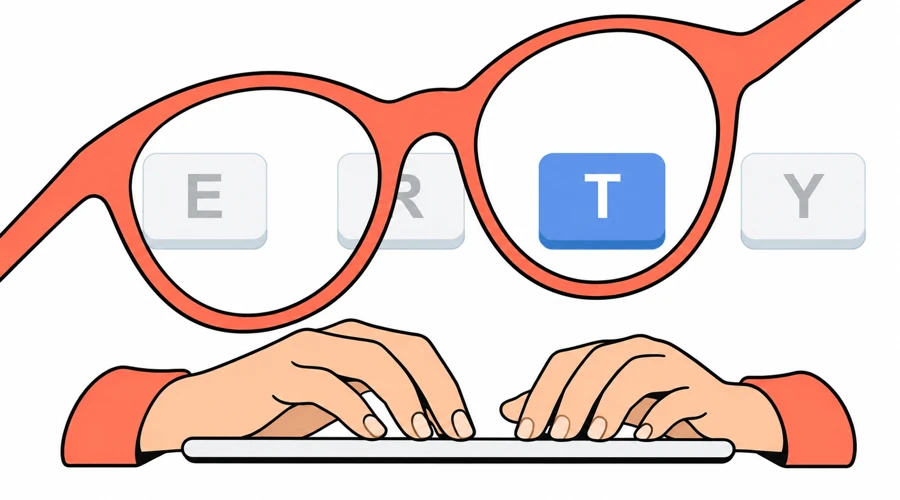
Touch typing means typing without looking at the keyboard. You can keep your eyes on the text while your fingers press the keys. If you look at the keyboard for each character, reading and checking what you have entered means repeatedly switching between the keyboard and the screen. Learning to type without those interruptions is useful whenever you spend time entering text on a computer using your keyboard.
Key takeaways
- Type without looking: Keep your eyes on the text rather than searching for keys.
- Use consistent finger placement: Practice pressing each key with its assigned finger.
- Put accuracy before speed: Learn the correct movements before trying to type faster.
- Learn your keyboard layout: Include the punctuation, diacritics, and accented letters you use.
How touch typing works
When you learn touch typing, you practice pressing particular keys with particular fingers. The keys are divided between your fingers, giving you a clear pattern to learn. Using the same finger for the same key helps you get used to the movement needed to reach it. With practice, you no longer have to look for the letter or decide which finger to use each time it appears.
Consistent finger placement makes typing more convenient because your hands have a familiar way to move across the keyboard. You can concentrate on the text and see mistakes as you make them. Typing courses like AgileFingers teach you to use both hands, with each finger responsible for specific keys. This technique is commonly known as "ten-finger typing."
Finger placement and the home row
The home row is the middle row of letter keys. It gives your fingers their starting positions: on a standard Typical QWERTY keyboard, the left fingers start on A, S, D, and F, and the right fingers on J, K, L, and the semicolon. Your index fingers rest on F and J. Most such keyboards have a small raised mark on those two keys, so you can find your position without looking, including when you return your hand from the mouse.
From that position, each finger reaches the other keys assigned to it. For example, the left index finger reaches from F to G, then returns toward F. Keeping the other fingers near their starting keys helps you find the next letter without moving the whole hand to search for it. Keep your hands relaxed and let your fingers move freely; you do not need to hold them rigidly against the home keys.
The exact finger positions depend on your keyboard layout. Learn the positions for the keyboard you use, especially its punctuation and language-specific letters. The finger placement guide explains the assignments in more detail.
What "muscle memory" means here
At first, you may need to think about each reach. Repetition makes those movements more familiar, until you can type entire sentences without consciously locating every key. This is often called "muscle memory." The term describes a learned movement skill; it does not mean that memories are stored in your finger muscles.
Practice moving between keys as well as pressing each one separately. If you can find a letter on its own but hesitate when it follows another letter, practice that pair slowly. This helps you use the familiar finger movements in continuous typing. The article on touch typing and muscle memory explores this learning process.
Touch typing and hunt-and-peck typing
With hunt-and-peck typing, you search for keys by sight, often using one or two fingers. Touch typing lets you keep your eyes on the screen or on the material you are copying. The difference is easiest to notice when copying a sentence: looking at the keyboard means taking your eyes off the source text, finding the key, and then finding your place again.
Some experienced people type quickly with fewer fingers, so finger count alone does not determine speed or accuracy; familiarity with the keyboard and consistent movements also matter. Many people use a mixture of methods, typing familiar words without looking but checking the keyboard for numbers or punctuation.
In How We Type: Movement Strategies and Performance in Everyday Typing (2016), researchers at Aalto University found that trained touch typists were less dependent on watching the keyboard. Among the 30 adult participants copying text, the trained group spent about 20% of the task looking at the keys, compared with 41% for participants without touch typing training. They also used more consistent finger assignments and prepared upcoming keypresses better. These findings highlight a practical benefit of learning touch typing: you can keep your eyes on the text and check what you enter as you type. Because it compared existing skills, the study cannot predict how quickly a beginner would improve.
For a beginner, assigning keys to particular fingers gives typing practice a clear structure. If you already type fluently, assess your actual difficulty before deciding to relearn everything. Needing to look at the keyboard for every number is a more useful practice target than simply wanting to use more fingers.
From typewriters to computer keyboards
Touch typing was taught on typewriters long before computers became common. Typists needed to enter text accurately and keep up with dictation or copy from a document. Learning the key positions lets them keep their eyes on the source instead of stopping to find each letter. Typing contests and teaching manuals helped spread the technique.
- 1868: Christopher Latham Sholes, Carlos Glidden, and Samuel W. Soule received a typewriter patent. The original patent drawing shows an early machine, rather than a modern keyboard.
- 1874: Remington brought the Sholes and Glidden typewriter to market. It became the first commercially successful typewriter, as described in the Smithsonian's history of the QWERTY keyboard.
- 1888: Frank McGurrin defeated Louis Traub in a typing contest in Cincinnati. McGurrin's performance helped demonstrate the value of typing without watching the keys.
Touch typing was also taught before McGurrin's famous contest. The Story of the Typewriter, published by the Herkimer County Historical Society in 1923, records M. V. Longley's all-finger instruction in 1881 and her published lessons in 1882. McGurrin's contest tested typing from both dictation and written copy, demonstrating the practical advantage of being able to watch the source while typing.
From direct keyboard input to personal computers
Early computers often took input from punched cards or paper tape. A keyboard allows an operator to enter information directly. Later, personal computers brought typing and editing on screen into everyday work.
- 1956: Researchers at the Massachusetts Institute of Technology tested direct keyboard input on the Whirlwind computer, using an electrically controlled typewriter. The experiment demonstrated an alternative to preparing punched cards or tape before entering information.
- 1981: IBM introduced the 5150 Personal Computer, with a separate keyboard. Text processing was one of its uses: you could type and edit text on screen before printing it.
- 1994: Microsoft released the Natural Keyboard, with a split design that angled the two groups of letter keys.
Modern keyboards also let you edit what is already on screen. Arrow keys move the cursor through text, while Backspace removes the character before it. A compact laptop keyboard may combine functions that have separate keys on a full-size keyboard. Include the editing keys you use in your typing practice, so that correcting a word does not mean looking at the keyboard to find a key again.
Why computer keyboards still use QWERTY
QWERTY gets its name from the first six letters in the top row of letter keys on the keyboard. The arrangement became established on typewriters and continued onto computer keyboards, as the Smithsonian's history of QWERTY describes. Keeping familiar key positions meant that people who could already type could use their existing skills on the new machines. They needed to learn the computer's functions, but not a new position for every letter.
That continuity still helps when you move between a desktop keyboard and a laptop with the same layout. The keys may feel different, but the letters remain in familiar positions. The photograph below, taken at the Maritime and History Museum of the Croatian Littoral in Rijeka, shows a related QWERTZ layout. Its Y and Z keys swap positions compared with QWERTY. Touch typing can be learned on both, but you need to practice the positions of the characters on your own keyboard.
National keyboard layouts and diacritics
The keys for Š and Č in the photograph show another reason to learn the layout you use. These letters with diacritical marks are part of this typewriter's character set, so typists had to learn their positions along with the other letters.
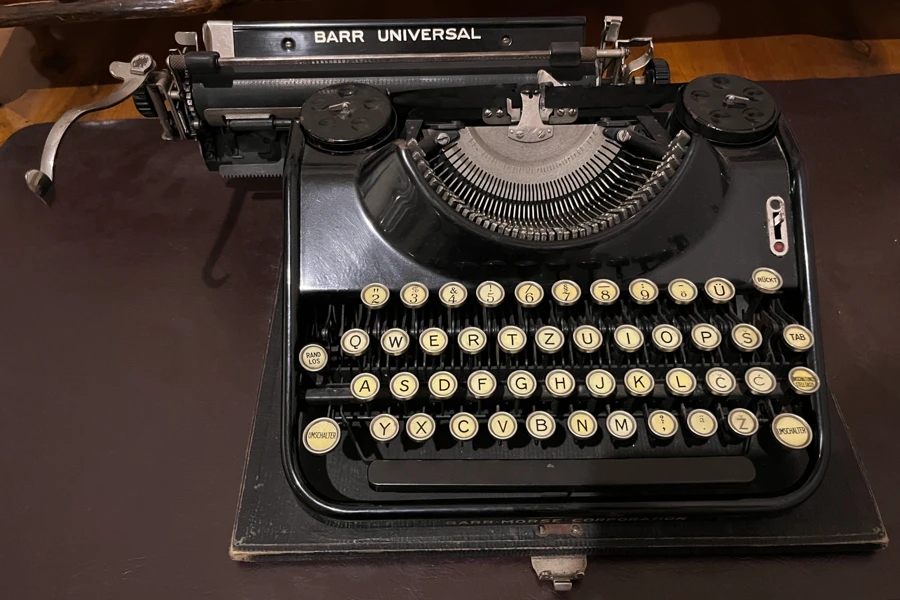
Computer keyboards still have national and language-specific layouts, often with accented letters printed on the keys. The added flexibility is that software can change what the same physical keyboard produces. For example, Windows lets you add and switch keyboard layouts to enter characters used in other languages without replacing the keyboard.
Key combinations can also produce letters that are not printed on the keys. On a Mac using the ABC layout, for example, pressing Option-N and then the A key produces ã. The first step sets the accent and the second supplies the letter. Apple's guide to entering accented characters explains this use of "dead keys." The available combinations depend on the input layout and operating system. Learning to type these letters without looking means practicing the required sequence, just as you practice using Shift for capitals.
Why touch typing is still useful
The most immediate benefit is being able to watch what you enter. When you type an answer, you can see a missing word or a wrong letter without first looking back up. When copying information, you can keep your place in the source. That makes keyboard use less dependent on repeatedly shifting your gaze.
Fluent typing can also reduce the pauses spent finding keys while you compose text. It does not supply the idea for your next sentence, check a calculation, or decide whether a claim is true. Typing and thinking are different parts of the work. Doubling your typing speed would not halve the time needed to research and write a report, because much of that time is spent doing something other than pressing keys.
This distinction matters in education, too. A student who knows the keyboard can enter an answer without searching for each letter, but still needs to understand the question and choose the right words. Touch typing is a practical skill that supports computer work; it is not evidence of better subject knowledge or a guarantee of improved memory.
Voice input offers another way to enter text. A keyboard remains useful when you want to edit a few words precisely or enter punctuation and code. You can use both methods. Learning touch typing does not require a prediction about which future interface will become popular; it helps with the physical keyboard you use now.
Typing technique and comfort are separate concerns
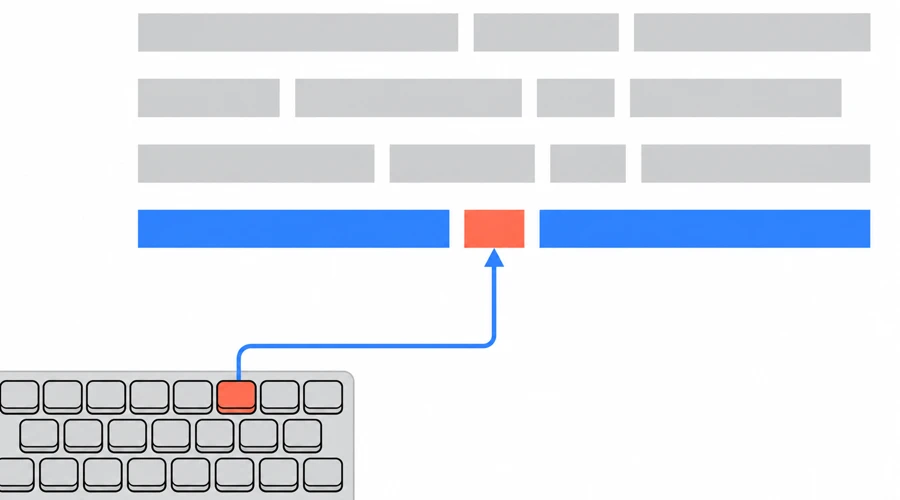
Typing without looking at the keyboard lets you watch the screen, but it does not automatically give you good posture. Keep your keyboard within comfortable reach, your shoulders relaxed, and your wrists in line with your forearms. The Occupational Safety and Health Administration's workstation guidance also recommends changing position rather than staying still for long periods.
A split or curved keyboard may suit your setup, but no particular keyboard shape is required to learn touch typing. Equipment, desk height, and how long you keep typing all matter. Take breaks between typing exercises and stop if typing hurts. Touch typing does not guarantee protection from repetitive strain injuries or treat an existing problem.
How to start learning with AgileFingers
AgileFingers is a free online application for learning and practicing touch typing. Beginners can start with lessons that introduce small groups of keys, using a virtual keyboard and hands as a guide. That lets you check which finger to use without looking at your own keyboard. Experienced typists, including people who type professionally, can use full-text practice with literary passages to work on continuous typing, capitals, and punctuation.
Use a physical keyboard and check that the layout selected in AgileFingers matches your computer's input layout. A mismatch can make the on-screen guidance confusing, even when you press the key you intended. Start with the keyboard you normally use; changing layouts and learning new finger movements at the same time adds another difficulty.
Begin with a few keys
The AgileFingers typing course begins with small groups of keys. Follow the virtual hands to see which finger should press the next key, then make that movement on your own keyboard. The on-screen keyboard is a guide, not a keyboard to click.
Go slowly enough to make a deliberate choice. If you repeatedly miss the same key, check your starting position and repeat the reach carefully. When you need help, looking at the on-screen guide lets you keep your gaze on the monitor. You can reduce reliance on that guide as the movements become familiar.
Practice typing full texts
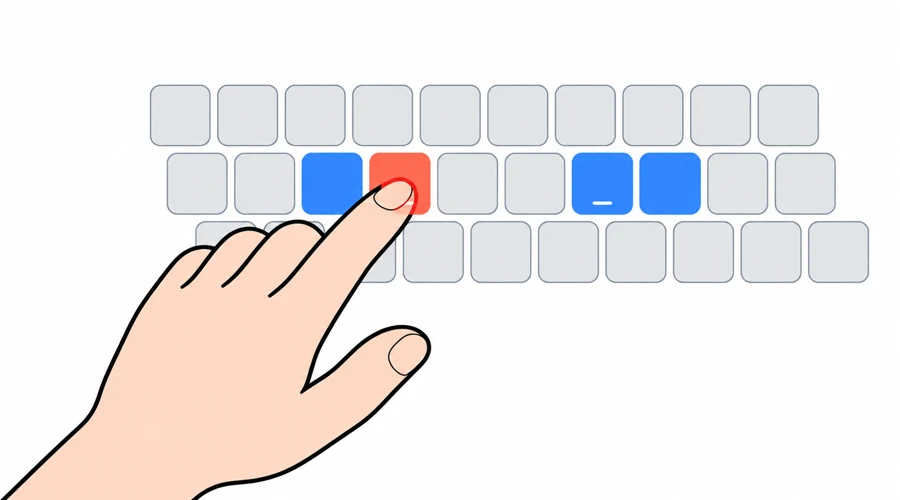
Once you can reach the keys used in a passage, try full-text typing practice. A sentence asks you to move between keys in a meaningful sequence and handle spaces, capitals, and punctuation. That is different from recognizing each key separately.
If nearly every word contains an unfamiliar key, return to the relevant lessons. A full passage should give you practice connecting known movements with some manageable difficulties. There is little value in racing through it while using a different finger each time you are unsure.
Read your results in context
Check accuracy alongside speed, and keep the language and exercise settings consistent when comparing attempts. AgileFingers can report speed in words per minute or characters per minute. Those are different units, so compare like with like.
Accuracy also depends on the selected calculation method. In AgileFingers, first-try accuracy counts typing errors even after correction, while final-text accuracy counts errors left at the end. A clean final text does not necessarily mean you typed it without mistakes. The accuracy explanation describes the distinction. Use the same method when judging improvement.
What to expect while you learn
Your new technique may initially be slower than your usual one. You are paying attention to finger choices that you previously made without much thought. Keep focused typing practice separate from urgent work, then try the new method in a short message when you have time to concentrate on it.
There is no fixed number of days in which everyone masters touch typing. Learning the key positions, typing a whole passage without looking, and reaching a chosen speed are different goals. Begin with a short typing practice session you can repeat regularly. Ten minutes is a reasonable starting suggestion, not a proven learning formula or a deadline for improvement.
Look for specific changes: finding your home position without checking, reaching a troublesome key reliably, or typing a line with fewer pauses. If the same letter keeps going wrong, slow down and check the movement instead of repeating the mistake at speed. For help making that practice regular, see building touch typing habits.
People also ask
How long does it take to learn touch typing?
There is no fixed number of days. Learning the key positions and reaching your usual typing speed are different goals. Someone learning those positions for the first time has a different task from someone changing a few finger assignments. Begin by checking whether you can type a short passage without looking at the keyboard. Compare later attempts using similar texts and the same accuracy settings, rather than treating another learner's reported learning time as a deadline.
Why am I slower after switching to touch typing?
You are replacing familiar movements with ones you still have to think about. A lower score at this stage does not tell you your eventual typing speed. For urgent work, use the method that lets you finish the task, and give the new movements separate, focused typing practice. Bring them into ordinary typing as you become more confident.
Is it worth learning touch typing if I already type quickly?
If you already type accurately without looking, you may have little reason to relearn every finger movement. Look for specific problems: a key you often mistype, a number you always look at the keyboard to find, or a movement that interrupts your typing. Practice those weak points. Using more fingers does not, by itself, guarantee a higher speed.
How do I learn numbers and punctuation without looking?
Use lessons for the number row and punctuation, then choose text that includes those characters. If a symbol needs Shift on your layout, practice that combination as well as the unshifted key. Work on a few unfamiliar characters at a time. A separate numeric keypad has different finger positions and needs its own practice if you use it.
Learn to type without looking at the keyboard
Touch typing gives you a way to enter text without repeatedly searching for keys. Find the home position on your keyboard, open the first typing lessons, and practice a small group of keys carefully. Speed can develop as the movements become familiar; accurate, repeatable typing is the place to start.