Why touch typing matters for AI prompts
Touch typing helps you put a complete thought into an AI prompt without repeatedly stopping to search for keys on your keyboard. You can keep your eyes on the conversation, enter useful details more fluently, and edit your message while its context is still in view.

Key takeaways
- Keep your eyes on the response while typing a follow-up, so you can refer to it without repeatedly looking down at the keyboard.
- Typing fluently makes detailed prompts and corrections less cumbersome, and it allows you to express your thoughts more clearly as typing doesn't cost you much time.
- You may type more when directing AI agents than when typing code yourself: requirements, examples, and review comments all need words.
- Practice accuracy as well as speed. A missing word or mistyped technical name can change an instruction significantly.
Keep your attention on the conversation
With touch typing, you find keys intuitively, without thinking about it, by their familiar positions rather than by looking for them. That is useful when the information you need is already on the screen. You can refer to an assistant's answer, compare it with your request, and type a correction without looking away to find each key.
If you regularly look down at the keyboard to type, each glance back means finding the proper place in the text on the screen. A long answer makes that back-and-forth especially awkward. Keeping your eyes up lets you follow the sentence or example you are commenting on. You still need time to think, but locating letters does not have to interrupt every few words.
Type complete prompts with ease
Prompt engineering means designing and refining the instructions given to a generative AI model. Typing speed does not decide how good those instructions are. It does affect the effort of putting them into words. When you type slowly, it can be tempting to leave out an example or send a vague request just to avoid typing another paragraph with an instruction.
For example, imagine you want a coding assistant to fix a signup form. Instead of stopping at "make the form better", you could write:
Show an error beside the email field when it is empty. Keep the text already entered in the other fields, and follow the form's existing error style.
The extra sentences explain what you expect and what must keep working. Touch typing makes entering that detail less demanding, so you can choose the length your explanation needs. The same benefit applies to a follow-up: you can describe the problem you noticed while the relevant part of the answer is still in front of you.
Touch typing when several agents need your input
In agentic coding, an AI tool can read project files, change code, and run checks, depending on its capabilities and permissions. Your keyboard work shifts toward explaining requirements and responding to the results. GitHub's guidance for coding agents stresses clear tasks, human review, and testing.
When your tools support several agents working at once, typing can become a larger part of a developer's day. The coder may be clarifying a task for one agent while another agent waits for a decision, and a third continues working. Touch typing helps you handle those exchanges without each reply becoming a slow exercise in finding keys and a struggle to explain your problem with as few words as possible.
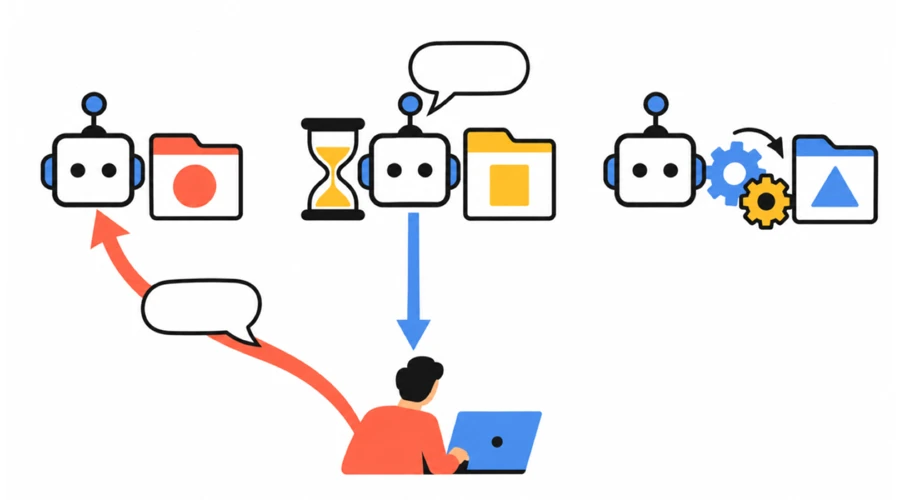
Touch typing makes it easier to give an AI agent detailed instructions, including exceptions and edge cases. If it asks whether a field is required, explain the condition: "Guests can leave it blank, but it is required when creating an account." A simple "yes" leaves out an important part of the rule.
Even when the agent writes most of the code, you still need to answer its questions and explain what needs changing after reviewing its work. Touch typing helps you give those explanations in full, without cutting a useful reply short just to save a few keystrokes.
Why AI-assisted coding can mean more typing
It sounds odd: a tool writes the code for you, yet you may type more than before. When coding by hand, you think through the logic and express decisions in compact syntax. When directing an agent, you also need to explain the surrounding requirements, give examples, and describe what must be working as before. Changed requirements and misunderstandings led to more written instructions.
For the form example, the code change might be small. Your explanation may cover the error message, where it appears, which values stay in the form, and what happens after a successful submission. Reviewing the result may produce another paragraph of feedback. Across several tasks, those words can add up to more typing than the code you would have entered yourself. How much you type depends on the task and how many revisions it needs.
Relevant detail gives the agent a clearer task; extra words alone do not. The point is to be comfortable enough at the keyboard that you do not omit a useful explanation just because typing it feels slow. This is one reason touch typing may become more useful as AI takes over parts of code entry. The related article on touch typing for programmers also covers the symbols, code patterns, and editor commands you still use yourself.
Make accurate edits to prompts
Vibe coding refers to building software through natural-language requests to AI and can involve accepting generated code without thoroughly reviewing it. Giving an agent instructions does not require taking that approach. You can ask it to do the implementation while still reading the changes, testing the behavior, and deciding whether the result is acceptable.
Accurate typing matters when you describe a problem. A mistyped file name can point to the wrong place; entering the wrong punctuation or omitting it can distort a requirement. Practice the capital letters, quotation marks, and punctuation in your usual messages, along with ordinary words. Being quick with letters but hesitant over every symbol still makes technical instructions awkward to enter.
Keyboard editing is useful here, too. You can replace one name, remove an outdated condition, or add an exception without rewriting the whole prompt. After an edit, reread the complete sentence before sending it. Touch typing lets you watch the text as you change it, but it does not replace checking what the final message says.
Touch typing helps in chats with colleagues
The same typing skills help when you write to a teammate. You can draft a complete update, add a link, or answer a follow-up while keeping the conversation in view. If typing is comfortable, adding the sentence that explains a decision takes less effort. Colleagues then have more to work with than a string of brief fragments or, what is worse, shortcuts that may not be understandable to everybody and make you sound unprofessional.
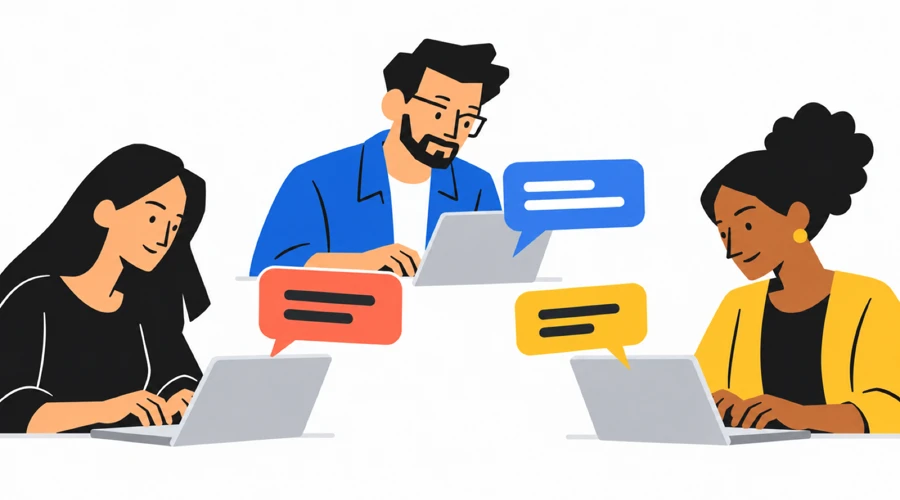
Written communication is especially useful when working hours do not overlap. A colleague can read a reply, follow its links, and respond later. Text also lets you skim, slow down, or return to the exact wording. A call can still be the better choice for a confusing discussion. Choose the format that helps people understand, and take time to reread a message before sending it.
Build typing fluency with AgileFingers
Start with the AgileFingers typing course if you still search for letter keys. Its lessons cover finger placement, then numbers and special characters. Those keys matter in prompts too: you may need quotation marks, a file path, or an exact name such as emailAddress.
For practice closer to your work, add a short prompt or review comment to custom texts. Enter or paste the text, give it a title, and save it for practice. Use a made-up example or material you are allowed to use. You do not need a private work conversation to practice the same keys. However, typing prompts is much easier than typing actual programming code as prompts are mostly plain text, so if you practice literary texts in AgileFingers, you will be good.
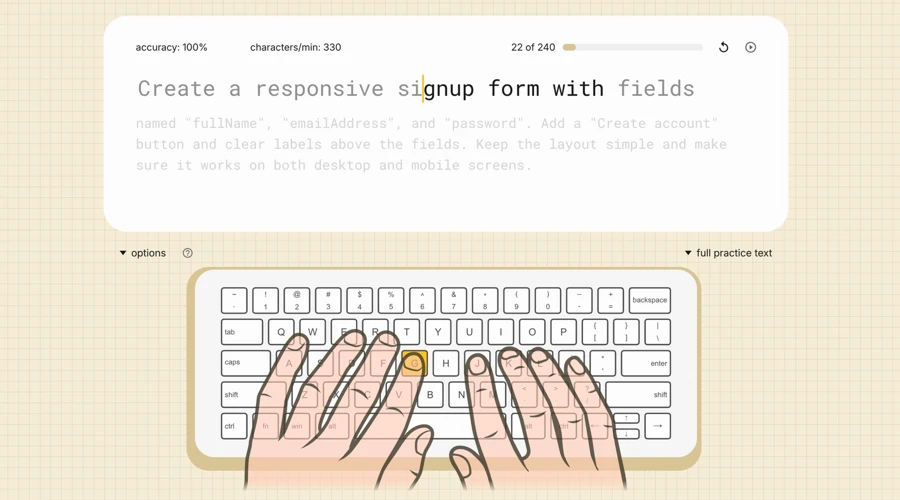
Try this short routine, adjusting the length to suit you:
- Choose a lesson for keys you often miss or have to look for. Slow down enough to use the correct fingers and keep your eyes on the screen.
- Practice your saved prompt or a programming lesson in AgileFingers. Pay attention to details that are easy to mistype, such as quotation marks, brackets, and field names like
emailAddress. - Type a few passages from the AgileFingers text exercises. Focus on keeping a steady rhythm through complete sentences, including capitals and punctuation. Afterward, review your accuracy and choose something to work on in your next session.
Retyping a passage trains the keystrokes; writing a new instruction practices choosing the words. You need both when working with AI. Use the typing test occasionally to check speed and accuracy, and also notice whether you can write everyday instructions with less searching for keys.
People also ask
How fast do I need to type to work with AI?
You can use AI tools at any typing speed. If finding keys interrupts your thoughts or makes you avoid useful follow-ups, that is a practical reason to practice. Aim first to enter your usual words, names, and punctuation accurately without looking down, then work on pace.
Does a longer prompt always give a better answer?
No. A long prompt can still be vague or contain conflicting instructions. Add information that changes how the task should be done, such as an example, an exception, or a required format. Remove repetition, and update old instructions when a requirement changes.
Can I dictate prompts instead of typing them?
Yes, if your tool supports dictation and it suits your surroundings. You may still want the keyboard to correct a file path, edit a technical name, or change one condition in a paragraph. Typing also lets you work quietly. Dictation and keyboard editing can be parts of the same workflow.
Touch typing makes working with AI easier
Working intensively with AI to find information or develop software can mean writing a lot of questions, instructions, and corrections. Touch typing makes it easier to clearly explain exactly what you need, without having to shorten your description just to save the time it would otherwise take to provide detailed instructions. That helps you give more attention to evaluating the information or code you receive.