Touch typing for programmers
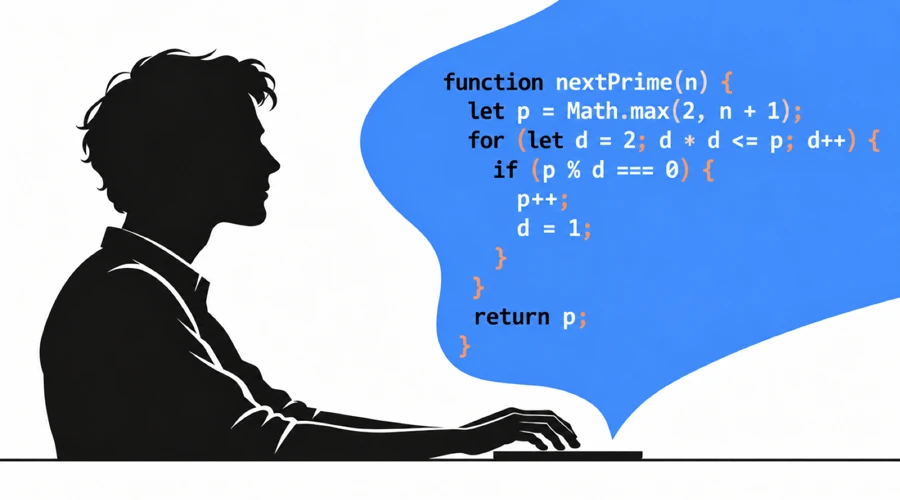
Touch typing allows you to type and edit code without looking for keys. You can keep your eyes on the screen while you type a function, enter a command, or create instructions for an AI agent. Good typing practice for coders covers more than letters: it includes the numbers, symbols, and naming styles you use in code.
Key takeaways
- Practice the numbers, symbols, and naming conventions in the programming language you use. The regular AgileFingers course includes number and symbol keys.
- Use programming lessons for code passages, or paste your own excerpt into custom texts.
- You can work efficiently using Vim or by learning keyboard shortcuts in your favourite IDE.
- Review the code an AI agent generates and learn how to correct it. You're still responsible for what code you create even if you don't write it yourself.
Why touch typing matters in programming
The principle of touch typing is always the same: to type without looking at the keyboard. Why do it? It's quite obvious. You want to save time and concentrate on the actual activity, task, etc., not on the process of typing.
Coding involves more knowledge of your keyboard than typing an essay. A short expression such as items[index] += value; mixes letters with brackets, an operator, and a semicolon. Other expressions add braces, parentheses, quotes, and numbers. A typing test made up of lowercase words leaves out those combinations. When you look down to find a symbol, you stop reading the code.
When you edit a condition, you need to check the surrounding code too. Touch typing lets you keep reading it as you type. After more than 20 years in software development, I still find it useful when I'm editing code, adding tests, or working in a terminal.
Practice the key combinations you actually use
Conditions, loops, and function declarations repeat throughout the code. A JavaScript loop header such as for (let i = 0; i < items.length; i++) combines parentheses, semicolons, a comparison, and an increment. If you hesitate over part of that line, it means you need to practice this kind of expression. It is crucial to be able to type quickly using the syntax of the computer language of your choice.
Capitalization and naming styles matter too. Typing userAccount or user_account takes different finger movements and different habits. Python's style guide recommends lowercase names with underscores for functions and variables, often called snake_case. Java variables usually use camelCase, as in userAccount. Class names and constants have their own conventions. You should naturally use all these conventions.
That gives you different things to practice. Python variable names often involve more underscores. Java variable names often involve more capital letters in the middle of a name. That is why if you want to code in Python and you choose a touch typing practice, it is better to use Python practice than Java practice.
During a code typing practice, concentrate on understanding and being aware of what the code does and how it is constructed. Notice where a condition ends and where its block begins. In Python, indentation groups statements, so changing it can change what the program does. Always be conscious of what code you type; don't do it thoughtlessly.
Practice typing numbers and special characters
The regular AgileFingers typing course includes numbers and special characters. Use those lessons when a digit, symbol, or key combination slows you down. It is not a good idea to start with programming-focused exercises if you have not yet mastered typing standard text. If letters are already comfortable, go straight to the keys you need. Even after years of programming, you may still have a few combinations you need to look for.
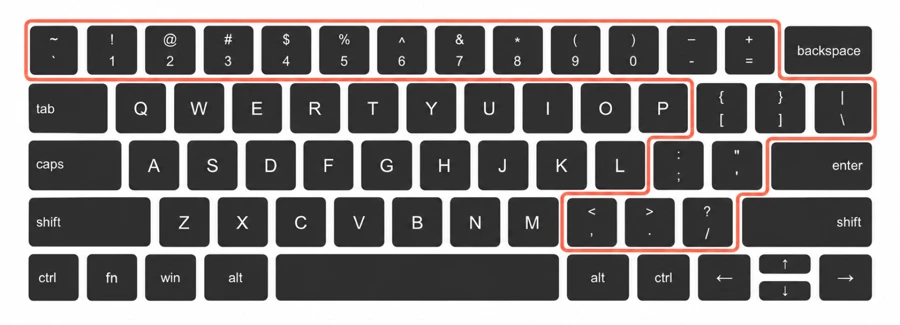
The illustration below shows the US QWERTY. On this layout, you type braces with Shift and the square-bracket keys. Other layouts put symbols elsewhere and may use AltGr or another combination. Match the practice keyboard to your operating system's active layout. The characters available in a lesson depend on that layout. If you have a different layout, you can always change it in settings
Use your IDE's keyboard features
JetBrains IDEs and Visual Studio Code let you find files, follow calls, and rename symbols from the keyboard. Learn the shortcuts in the editor you already use. You can also use a Vim plugin to do this and much more using your keyboard if you like the idea of mouse-free code editing.
Start with actions you repeat during a normal day:
- Find files and symbols: open a file or jump to a function without browsing the folder tree.
- Go to a definition and return: follow a call to its implementation, then return to the caller.
- Rename a symbol: use the editor's rename tool where the language supports it. Check the preview and the affected references.
- Run a focused test: rerun the relevant test and jump to a reported error from the keyboard.
- Select and edit text: learn word movement, selection expansion, line comments, and switching between the editor and terminal.
Learn action search first so you can find commands without browsing the menus. In the standard JetBrains keymaps, pressing Shift twice opens Search Everywhere. The JetBrains shortcut guide covers navigation and keymap settings.
In VS Code, the Command Palette normally opens with Ctrl+Shift+P on Windows or Linux and Cmd+Shift+P on macOS. Its keyboard shortcut editor lets you look up commands and change their bindings. If a shortcut behaves differently, check your active keymap. Always think twice if you want to change the default key binding - the current configuration has usually been very carefully considered.
Use completion for long names and snippets for code you repeat. For example, VS Code IntelliSense offers completion and parameter information. In a typing exercise, enter the passage yourself to practice the keys. Back in your project, use the editor's help and check what it inserts. When you notice yourself repeating the same clicks, look up the shortcut and try it on your next task.
Take command-line work seriously
Developers and system administrators use terminals to run commands, execute tests, inspect logs, manage files, and work on remote systems. Commands mix names, paths, options, quotes, pipes, and numbers. You need to read what you've entered before you run it. Touch typing lets you keep your eyes on the command as you type or change it.
Learn your shell's editing tools. In Bash's default Emacs-style Readline bindings, Ctrl+A moves to the start of the line, and Ctrl+E moves to its end. Ctrl+R searches backward through command history. Tab tries to complete what you've typed, such as a command or file name. The Bash manual's Readline section explains these controls. Other shells and custom bindings can differ.
Use completion and history to save retyping. If one argument is wrong, move to it and fix it. You don't need to start the whole command again. Before pressing Enter, check the path, options, and working directory. On a remote system, check which shell you're using. Its editing controls may differ from your local setup.
Measure accuracy as well as speed
Track your typing speed, but pay attention to mistakes too. If you keep correcting the same symbol, that's something to practice, even if your overall score is good. An editor may catch a misspelled name. It may not catch a valid operator that does the thing you didn't intend it to do, so keep reviewing and testing your code.
Start slowly enough to type the passage accurately. Try going faster once you type confidently without making too many typos, and even if you do make a typo, you are aware of it, and you correct it immediately. To compare results, keep the exercise, layout, practice limit, and accuracy setting the same. A harder passage can lower your score even when your typing has improved. It is best visible in the course where lessons are easy at the beginning, but then the key combinations you practice are more and more complicated. It slows you down, and you get a worse result. That's why you get the impression that your typing speed decreases, but it is only the exercise difficulty.
AgileFingers shows speed in words per minute or in characters per minute. It uses five characters per word for the conversion, so a long identifier doesn't count as just one word. First-try accuracy still counts a mistake after you correct it. Final-text accuracy checks the text left in the exercise. Remember which method you've chosen when you compare scores, as the results may differ. Choose the settings that feel most applicable to your needs.
AgileFingers practice for programmers
AgileFingers seems to be aimed only at beginners, teachers, and students because of its cheerful colors, graphics, and ease of use. While it is true that AgileFingers is great for schools, you need to be aware that it has been created by professional developers who love computer science. We wanted it to be useful also for top professionals. We have included literature texts as typing practice to exercise on complicated texts, not only some abstract key combinations or simple words. For coders, we have included dedicated lessons in different computer languages. We have also added interface themes in a retro style and a dark color scheme – these are more subdued and less straining on the eyes.
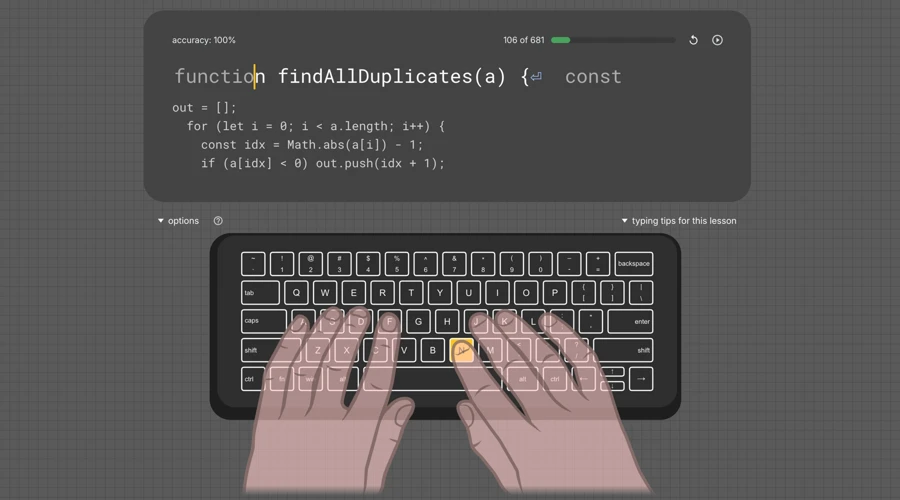
The programming lessons offer passages in Python, JavaScript, Java, and other languages. Choose a language and type the displayed code. The keyboard and finger guides show which keys to press. After each exercise, you will receive feedback on your typing speed and accuracy.
Practice coding with custom texts
You can also practice with your own code in AgileFingers custom texts. Paste a short excerpt you wan to practice, give it a title, and save it. Then choose it from your custom catalogue. A function with nested conditions, a SQL query with joins, or a Bash argument parser could work well. Pick a code you understand so you can focus on typing it.
If underscores and digits trip you up, choose code with names that contain them. If quotes and brackets cause errors, choose a passage with plenty of those. Check the displayed text before starting, especially if the original uses tabs or characters outside your selected layout. Custom texts also work for technical explanations and instructions for an AI agent.
AI agents still need clear instructions and careful review
An AI agent can generate code, run checks, and revise its work. You still have to explain what you want and check what it changes. GitHub's guidance for its coding agents recommends clear tasks, human review, and testing of generated code.
Even if you rarely type code yourself, you still need to describe requirements, provide examples, report bugs, and give feedback. For example, "make the form better" leaves an agent guessing. Tell it which input fails, what the user should see, and what must keep working. You'll need to edit those instructions when the requirements change or the agent misunderstands them. The more details you give, the better solution you get. What is unintuitive is that you may actually type more when using AI agents than you did when you were coding yourself. Typing code by hand means a lot of thinking through every single symbol. Once you type instructions for AI, you try to be as descriptive as possible; you don't limit the number of words as you do in your code, so that the code is readable and maintainable. It is even a bit funny, but in the landscape of AI-generated code, touch typing may be even more useful than before.
Some people claim that typing is almost over, as we can dictate instructions for AI. Dictation can help you get a first draft down. Editing it still takes work. You may need to correct a file path, change a variable name, or remove one condition from a long instruction. If dictation suits you, use it. I'd still keep practicing keyboard edits so I can make small changes myself. What's more, you may not always feel like talking to the microphone all during all your day work. Even if you are an extreme extrovert and you love talking to everybody and everything - including computers, your vocal cords won't like being used so intensively all the time. You may want to work in silence, and that is what your beloved keyboard is for.
I wouldn't be comfortable building a product whose behavior I couldn't explain. An agent's confident answer doesn't prove that a permission check is correct or that an edge case is covered. If you own the product, you're responsible for those decisions. Learn enough to spot a problem and explain what needs fixing. Learning a computer language involves a lot of coding. If you do not wish to create your own programs but are simply looking to better understand syntax, the programming lessons on the AgileFingers system will be an excellent solution.
If you want to become an exceptional programmer, keep reading code and making your own changes. You can still use agents to help, but review their work carefully and think critically about their suggestions. The AgileFingers programming lessons are there when you want to work on the symbols and code patterns you find most challenging.
Basic editing in Vim and Neovim
Vim is a text editor built around keyboard commands that let you move through files and make changes with a few keystrokes without the need to use your mouse. Neovim builds on Vim and keeps the same core editing approach. Vim and Neovim use different modes for entering text and editing it. In Normal mode, dd deletes the current line, while ciw changes the word under the cursor and enters Insert mode so you can type its replacement. The official Neovim documentation covers movement, editing, and more.
Learn these commands inside the editor, where you can see what they do. In some of Neovim distributions, you can press Escape, type :Tutor, and press Enter to open its interactive tutorial. If your distribution disables the tutor, start nvim --clean from a terminal and try again. This loads Neovim's default setup. For Vim, follow the vimtutor instructions for your system.
Work through a small part of the tutorial, then repeat it without looking at the instructions. Next, open a copy of a familiar file and use the same commands to replace a name or remove a line. Learn a few edits you use often before trying to memorize a long command list.
Neovim can also offer familiar IDE features
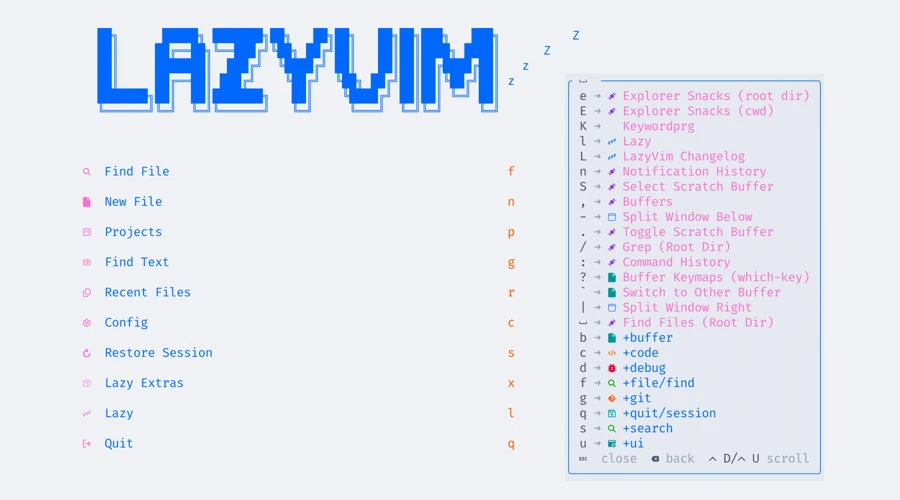
Neovim supports plugins for file search, code navigation, completion, diagnostics, and formatting. You can set these up yourself or use a distribution with settings and plugins already configured. LazyVim is one such "batteries included" setup. It offers many familiar IDE features, though you'll still need the right tools for your language. Its keymap guide and which-key popup help you find commands.
You can also use a Vim plugin in your existing IDE. Check which shortcuts the plugin handles and which the IDE handles, especially if a key does something unexpected. Start with a few commands for edits you use most often.
A short touch typing practice plan
Pick something that slowed you down today: a symbol you had to look for, a name you kept mistyping, or an editor command you couldn't find. Use that as the starting point for your next practice session:
- Choose a course lesson for the number or special character you need to practice.
- Type a programming lesson or custom text that uses it in code.
- Check the result and repeat the part you got wrong, slowly enough to type it correctly.
- Switch to your preferred code editor or shell (terminal) and use the element you practiced in actual code or a command.
Practice typing plain text as well. Comments, documentation, and instructions for AI agents have become an essential part of a programmer's work. You can practice using excerpts from literature (available, for example, at AgileFingers - texts) or by preparing and retyping your own technical notes. If you’d like to relax a bit while continuing to learn, try out some typing games.
Questions programmers ask
The following questions appear in developer discussions on Reddit regarding touch typing in the context of working in the IT industry.
Why can I type words quickly but slow down on code?
You may know the letter keys well, but still hesitate over brackets, quotes, numbers, or capital letters. Unfamiliar syntax can slow you down, too. Choose a short code passage you understand and practice the combinations you pause over. Compare your attempts on that passage. That's why using AgileFingers programming lessons can help you to get familiar with typing the code.
Should I learn touch typing before learning to program?
You can learn both at the same time. Keep building programs and spend a little practice time on keys you keep searching for. You don't need to reach a high typing speed before starting a project. If you're already working as a programmer, you can fit the same practice around your usual work.
Do I need to switch keyboard layouts to type code comfortably?
Start with the layout you use at work, especially if you also need it to type in your own language. Practice the symbol keys before deciding to switch. A different layout may suit you, but consider the keyboards you use at home and at work. Switching can be awkward if you rely on a highly customized programmer's keyboard at home but have to use a standard keyboard with different mappings at work.
Choose mappings you like and check whether you can use them on both machines. Keep the positions of your most-used letters, symbols, and shortcuts consistent where possible, so you don't have to keep relearning them. If your work setup can't match your home keyboard, stay comfortable with its standard layout too. Allow time to learn any new positions before relying on them during a busy workday.
Try it in your next coding session
The next time you edit code or enter a command, notice which keys still make you stop and look down. Work on those in the programming lessons, or add a relevant passage to your custom texts in AgileFingers. Keep using your editor and AI tools, and keep reading, checking, and correcting what they produce. Even if you are not happy about the current state of the IT industry and the recent changes, unfortunately, there is not much you can do about it. An advice form an experienced developer: for the sake of your own mental well-being, it is best to accept certain changes and adapt to the new reality. This does not mean, however, that you should leave everything to artificial intelligence. Write at least some of your code yourself - this ensures that you are not just able to read a programming language, but also to create within it. Make use of your keyboard; it is a physical device, a tangible means of communication. In a world of digital products, the keyboard is something real. We need tangible things in our lives - things we can touch and work with, things that keep us grounded.