AgileFingers news archive
2020
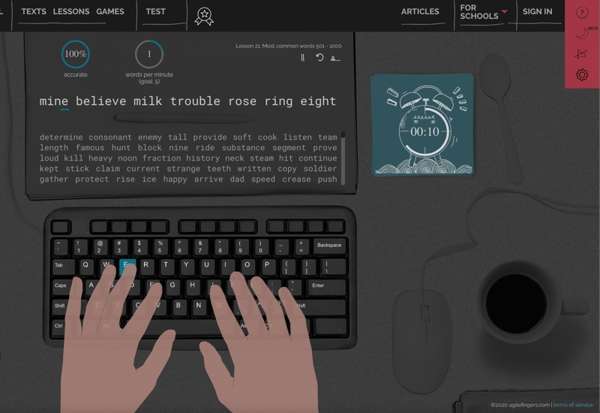
Practice touch typing in dark theme
Dark theme is available in AgileFingers. You can just click the sun icon in the right-hand corner and the dark mode is on. Once the dark mode activates, the sun icon changes to the moon icon. Once you click the moon icon, it switches back to the bright mode. Your application mode preference is saved in the settings so if you change to the bright or dark theme and refresh the page, you will have your favorite theme activated.
If you use your computer for a good couple of hours a day, you know how useful dark theme is. Some people find a darker interface more comfortable in dim surroundings. Choose a theme and screen brightness that suit your lighting and preferences.
If you are a dark mode lover, you probably know that there are special browser plugins that make a website change its mode to dark. These plugins may leave some images unchanged or alter colors in ways the website developers did not intend. Therefore, if you use an automatic dark mode in your browser and a given website has a dark theme option, we recommend that you use its native dark theme.
The dark theme gives you another display option for touch typing practice. Good lighting, suitable screen brightness and regular breaks remain important.
Typing lessons in Python, JavaScript, and Java
We are introducing programming lessons as an addition to the current lessons. The new touch typing exercises are designed to let you practice typing code in different programming languages. Learning how to type in a given language requires using that language's syntax. Computer languages intensively use special characters like brackets, commas, colons, semicolons, etc. That is why dedicated programming lessons should help all coders.
We are adding programming exercises in Python, JavaScript, and Java. If you are a programmer and you do not use any of these languages on a daily basis, the language you use may be similar to one of these languages. Our programming lessons let you practice typing code and the special characters it uses.
Programming lessons are supported when you use both typing modes in AgileFingers: typing from left to right and typing from the middle. We have also introduced support for pressing the Enter key. We are going to add support for touch typing exercises for a few more programming languages.
Custom text for schoolwork
Teachers can now use their own texts for school assignments as an alternative to predefined lessons and literary excerpts.
In the assignment editor, choose "my own texts" to enter a new text or select a saved one. Saved texts can be used for homework or in-class typing practice.
Adding a second field for logging in to a class
The student sign-in page now has separate fields for a student access code and a class access code.
These are alternative codes, not two parts of one code. Use the field that matches the code you received from your teacher.
Russian language
AgileFingers is now available in Russian. The interface and lesson instructions have been translated, and Russian texts have been added for typing practice.
2 charts: accuracy and speed
Previously, only the speed chart was available.
Typing left to right
We have added an icon for changing the typing direction to left to right.
Swedish and Norwegian languages
AgileFingers is now available in Swedish and Norwegian. Both versions have a translated interface, and articles about touch typing are available in these languages.
Choose Swedish or Norwegian from the language selector to use the corresponding version of the course.